

Hello Team, I have 4 different box shapes each for different sourcename. I need to change the color of the box based on status and state column value. If the condition is true then green else yellow.
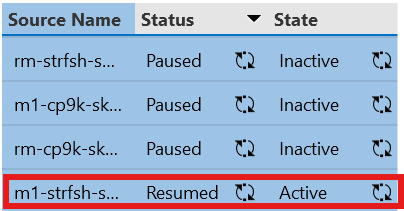
I tried Shape data Options: FillColor; RegexMatch([Param:1],"^rm-strfsh.*252") AND !Contains([Param:1],"source") AND [Param:2]=="resumed" AND [Param:3]=="active", Green FillColor;true,Green
But it didn't work.


Hi Ramesh,
Of course it depens a bit about the full context of how you would like to show the shape, but I think the easiest solution is to work with the Shape Data 'Show' (Extended conditional shape manipulation actions | DataMiner Docs). When using shapes above each other and make smart use of transparency, you can already come a long way.
Kind Regards,
Jarno
I have one fixed rectangle box in Visio, and I need to change its color based on specific conditions.
I need to check the source name, status, and state, and apply the background color accordingly.
Examples:
i. If the source name starts with rm-strfsh, the status is resumed, and the state is active, then the rectangle’s background color should be green.
ii. If the source name starts with rm-strfsh, the status is paused, and the state is inactive, then the rectangle’s background color should be yellow.
This is possible. Just create two shapes, for each color one. Each shape should have a Show condition based on what you have specified. Do take note of the separators in the extended condition (e.g. the dash ('-') is part of your value so you'll have to come up with something like this:
[sep:-^]<A>and<B>and<C>^A|Element:[this element]|102, [TABLE INDEX]|=Regex=[your regex]^B|Element:[this element]|103, [TABLE INDEX]|=resumed^C|Element:[this element]|104, [TABLE INDEX]|=active
You will still need to fill in the correct table index (Primary Key or Display Key) in replacement for [TABLE INDEX]. Also the corect parameter IDs for the columns that you would look to. At last, also the values of the condition need to be changed (i.e. the condition looks to the raw values. If Resumed is a discreet, you'll have to find in the protocol the raw value that maps to 'resumed').
Yes, got it. I was wondering if it’s possible to add two filter criteria in the subscription filter.
SubscriptionFilter: value=9632 == *test*| value=9602 == 0. Because based on my current workflow I am not able to get the primary/display key. But with two parameters I will be able to extract the row.
If you don't know the display name, you can indeed use SubscriptionFilter on your shape. Tested this and it works.
You will need to use the SubscriptionFilter for finding the right 'context' (row) and you'll need to use the show with same or different conditions of that row to either show one or the other shape (color).
dummy example:
Element : [this element]
SubscriptionFilter : value=202 == *2;value=201 == 2
Show [sep:-^]<A>^A|Value|[param:[this element],201,]|=2
Hello Team, Anyone aware of the solution?