
workflow Use Case
On-The-Fly Service Manipulation

DataMiner Service and Resource Management (SRM) is a suite of tools to orchestrate the life cycle of any of your services end to end, for example a linear playout service, a pop-up OTT channel, a fiber contribution service, a satellite downlink, etc.
Service definitions are used to define the building blocks of each service and how they are connected. As a user, you can schedule a service up front. DataMiner will then make sure to reserve the necessary resources, it will apply the right profile before your service starts, and it will automate the service execution.
Although up-front planning of your services and fully automated service orchestration is the ideal scenario, there will be situations where an operator needs to quickly change a service that is already running, for example to add a video processing unit or to set a confidence monitoring point somewhere in the signal chain.
This use case shows an example of how you can manipulate a service, which is already running, on the fly.
USE CASE DETAILS
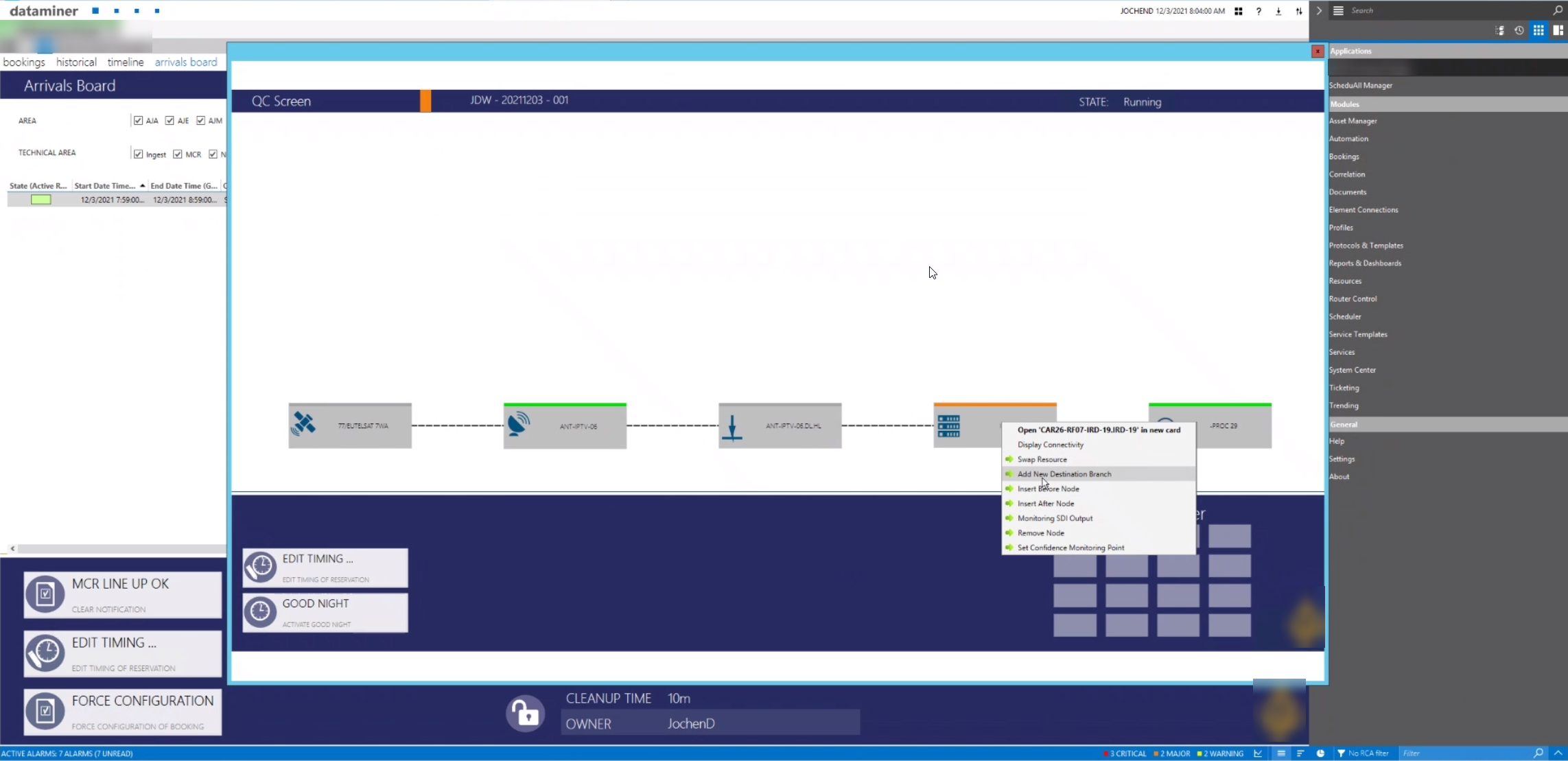
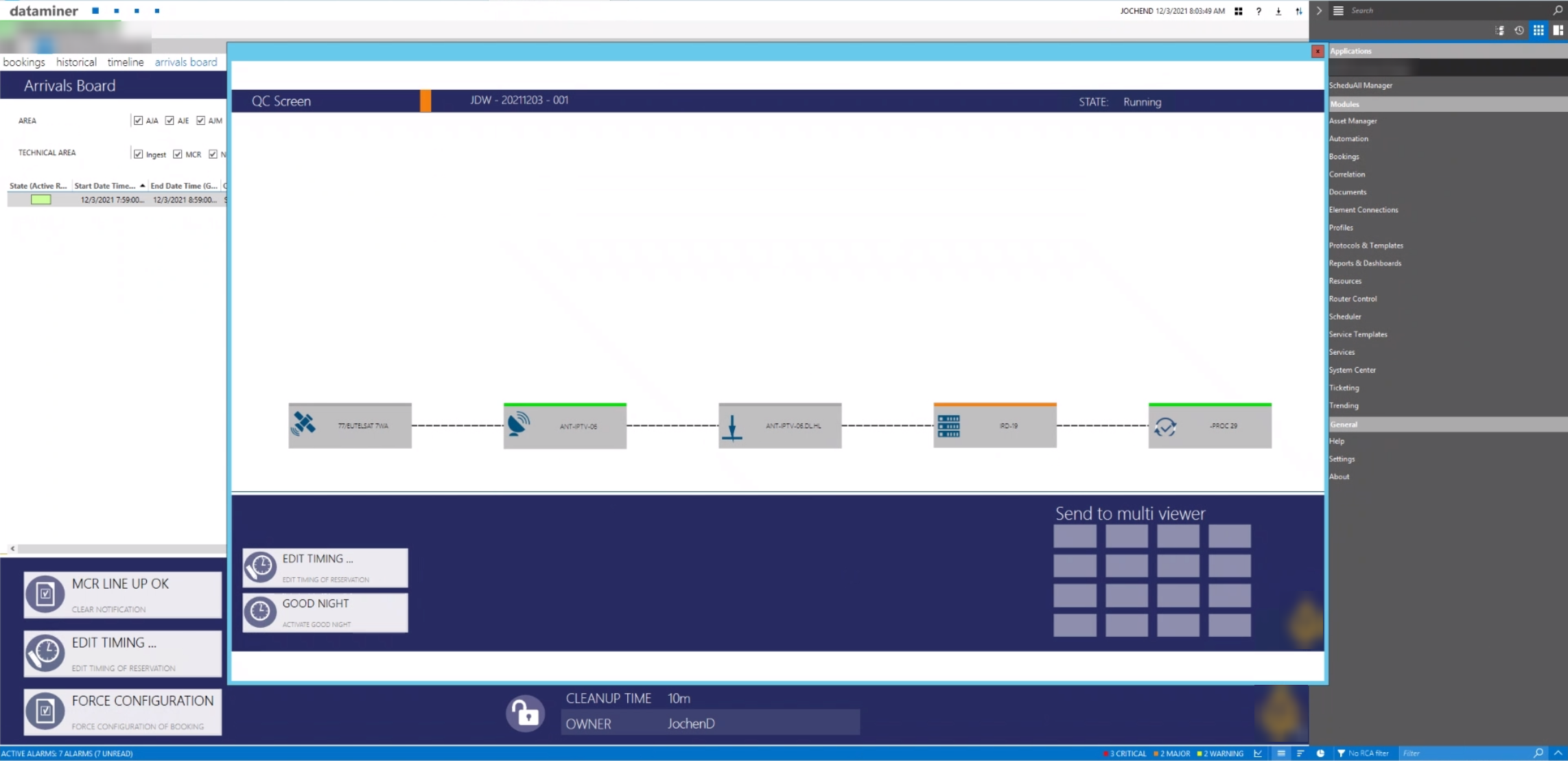 This screenshot shows a typical DataMiner east-west service view of an active service, in this case a satellite downlink, from the antenna up to a processing unit that is the destination for the signal coming from the satellite.
You can change the timing, for example to extend the service, or to finish the service early, which will free up all resources again. You can also manipulate the service itself. Simply right-click one of the building blocks. As you can see in the screenshot, you can manually swap a resource, insert a new resource before or after that node, remove a node, send the signal to a monitoring output, add a confidence monitoring point somewhere within the signal chain, or add a new destination to your service.
This screenshot shows a typical DataMiner east-west service view of an active service, in this case a satellite downlink, from the antenna up to a processing unit that is the destination for the signal coming from the satellite.
You can change the timing, for example to extend the service, or to finish the service early, which will free up all resources again. You can also manipulate the service itself. Simply right-click one of the building blocks. As you can see in the screenshot, you can manually swap a resource, insert a new resource before or after that node, remove a node, send the signal to a monitoring output, add a confidence monitoring point somewhere within the signal chain, or add a new destination to your service.
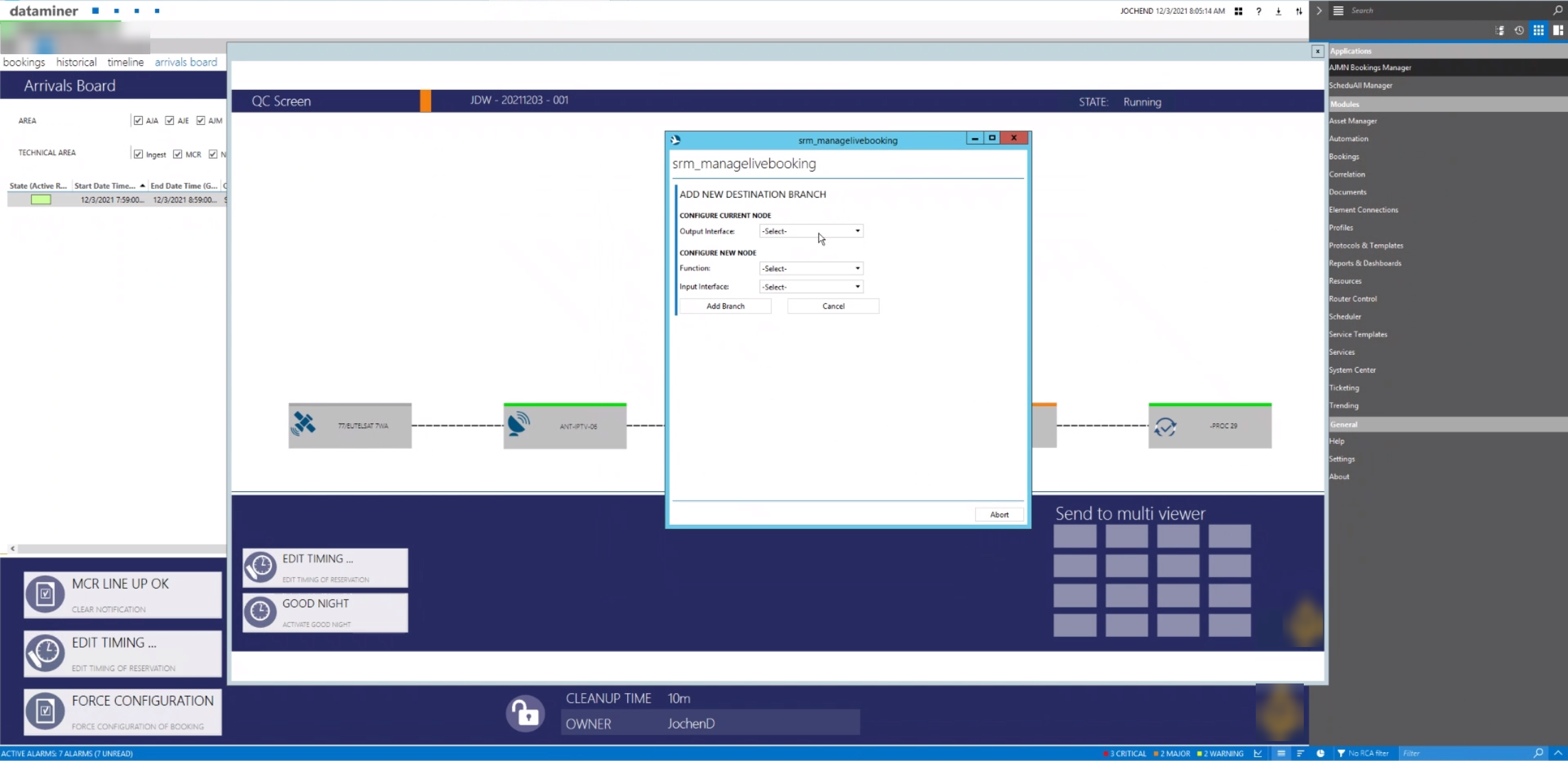 In this use case, we have selected "Add new destination branch". A customizable wizard will guide you through the additional steps. First you need to select which output interface of the selected node you want to use.
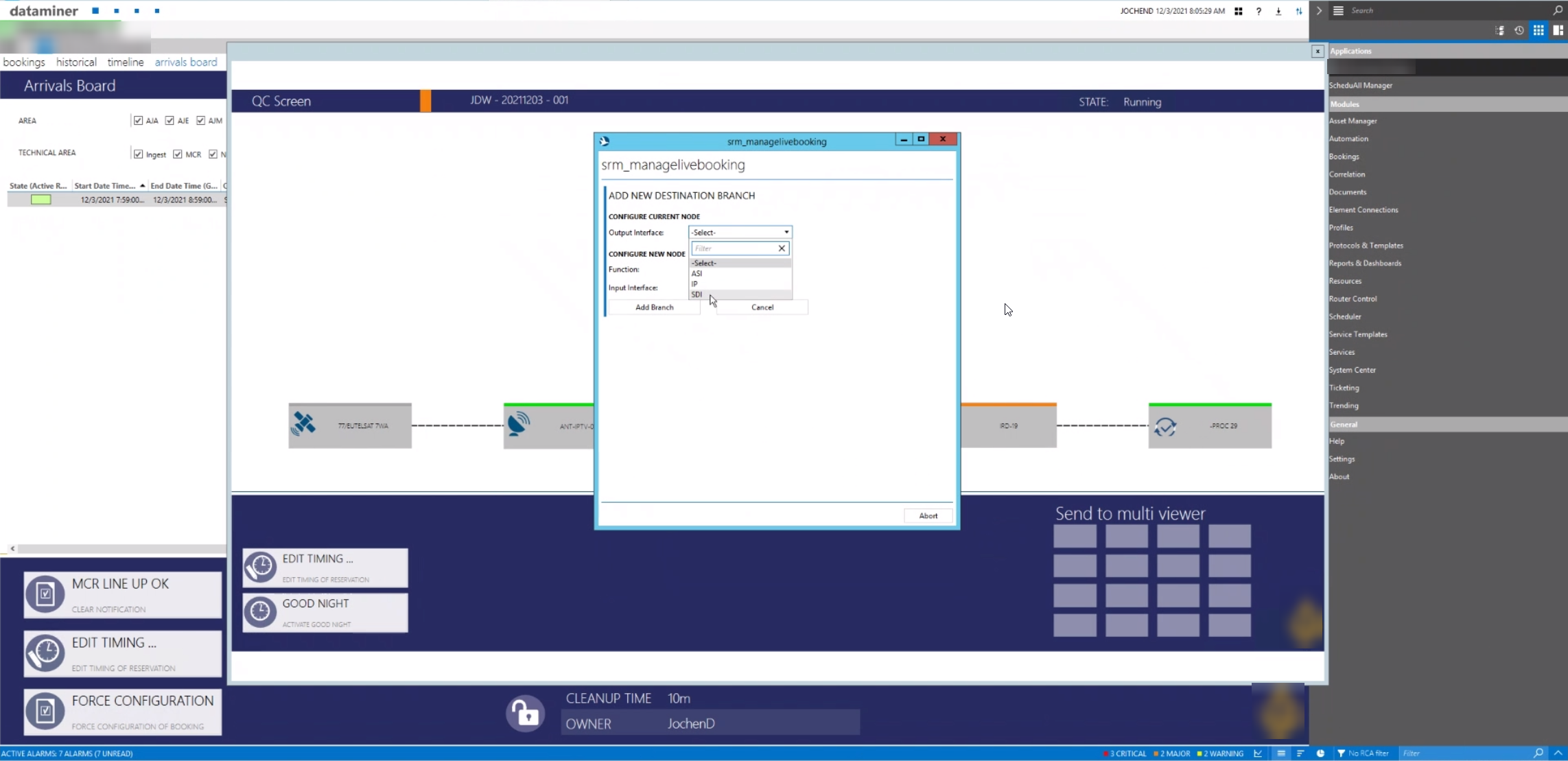 In this case, the IRD has three output interfaces: ASI, IP and SDI.
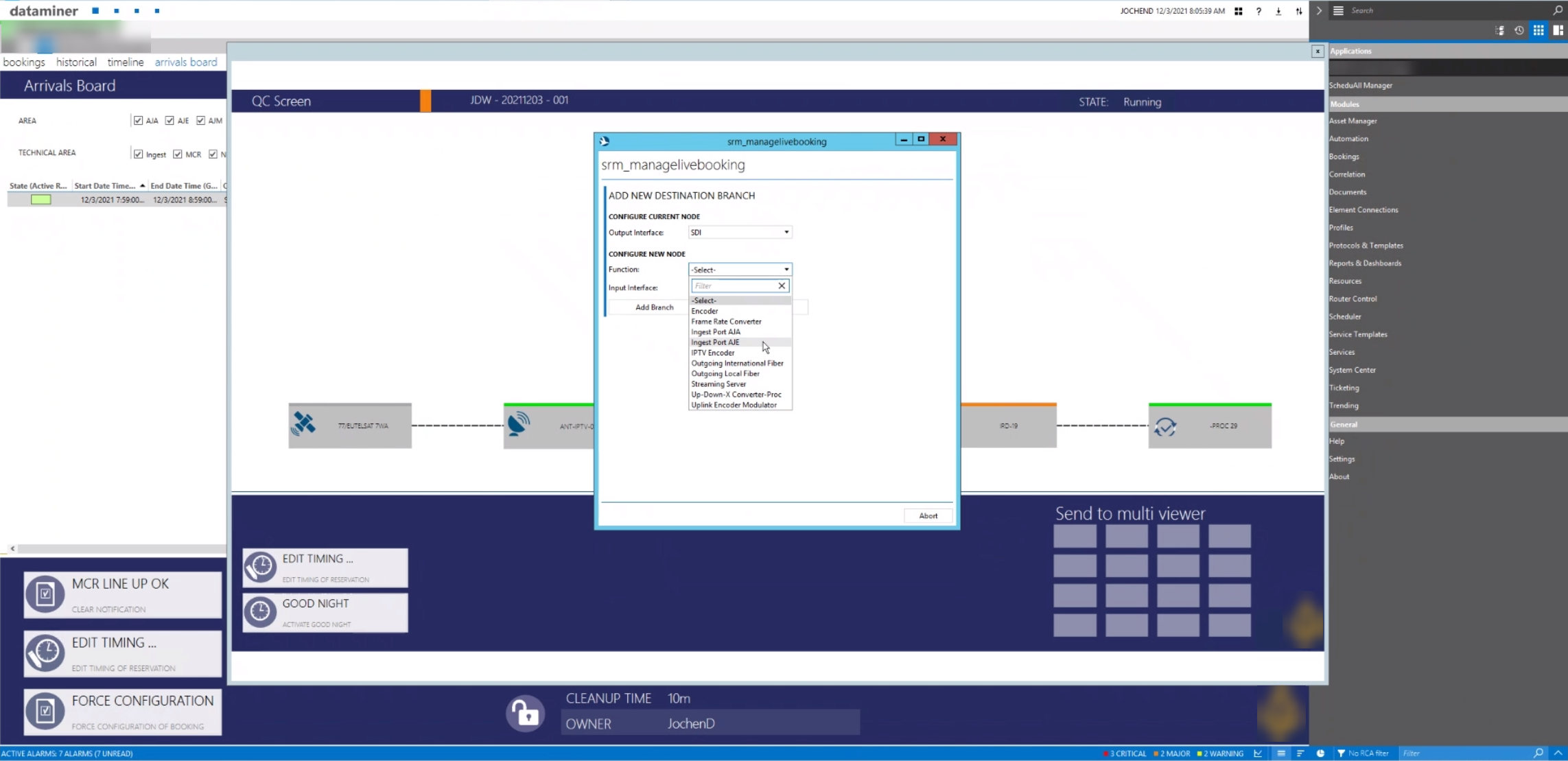 After you have selected the output interface, the wizard asks for the type of function you want to add.
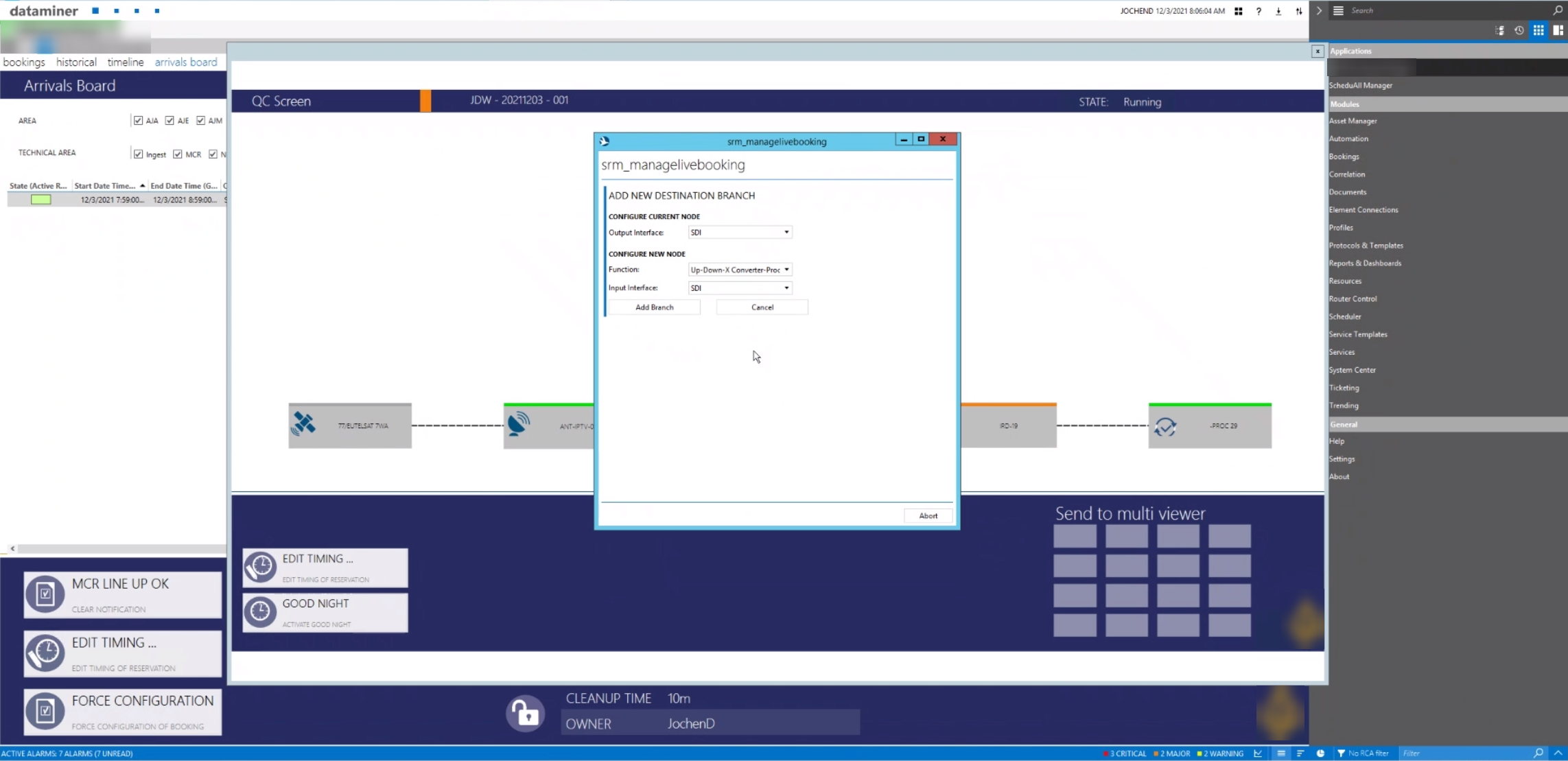 In this screenshot, an up/down/cross-converter was selected. DataMiner automatically selects SDI as the input signal, as the IRD's SDI output needs to be routed to the SDI input of the converter.
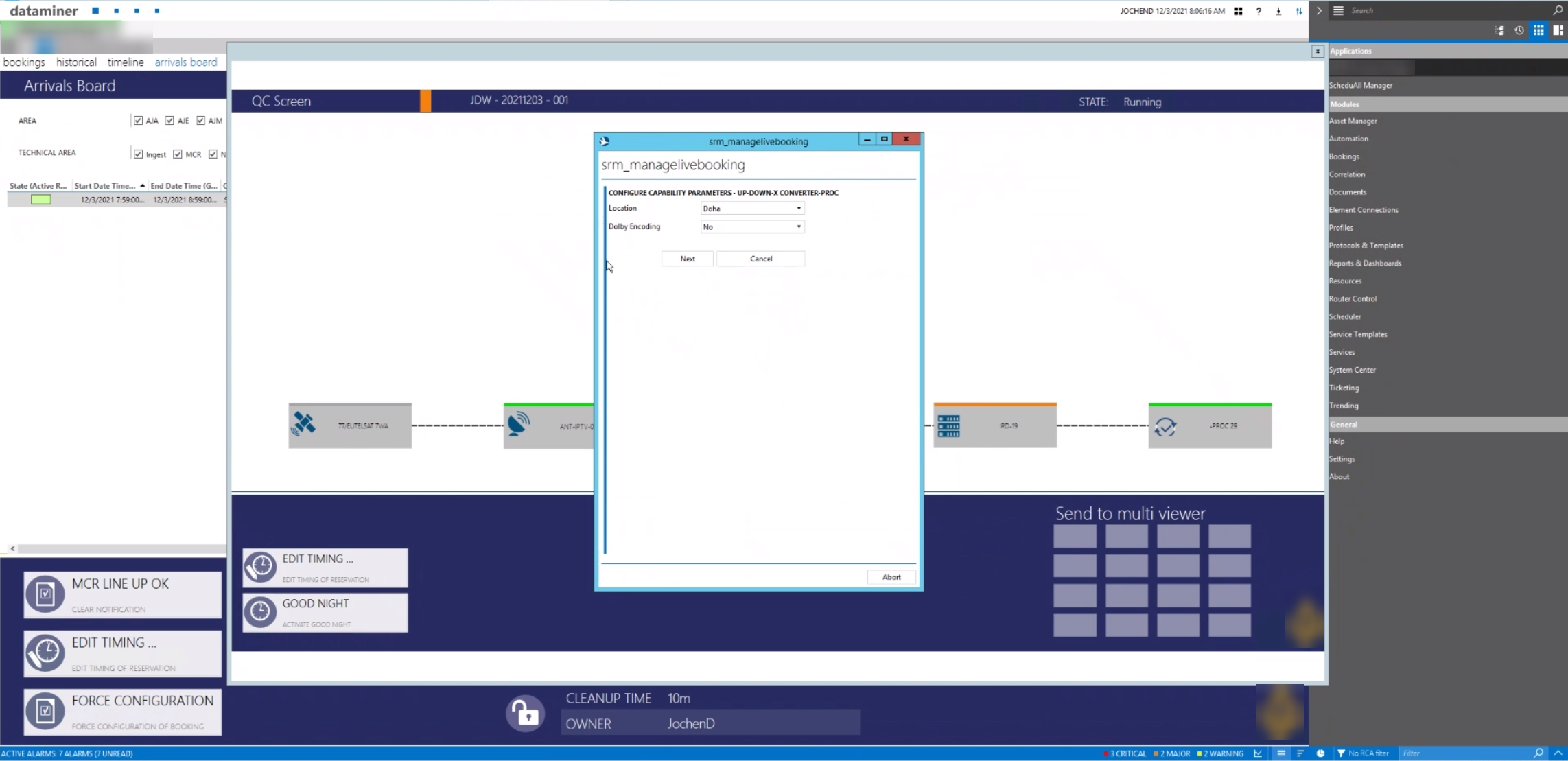 Each function has a set of capabilities. The wizard will allow you to further fine-tune the requirements and settings of the converter you want to add.
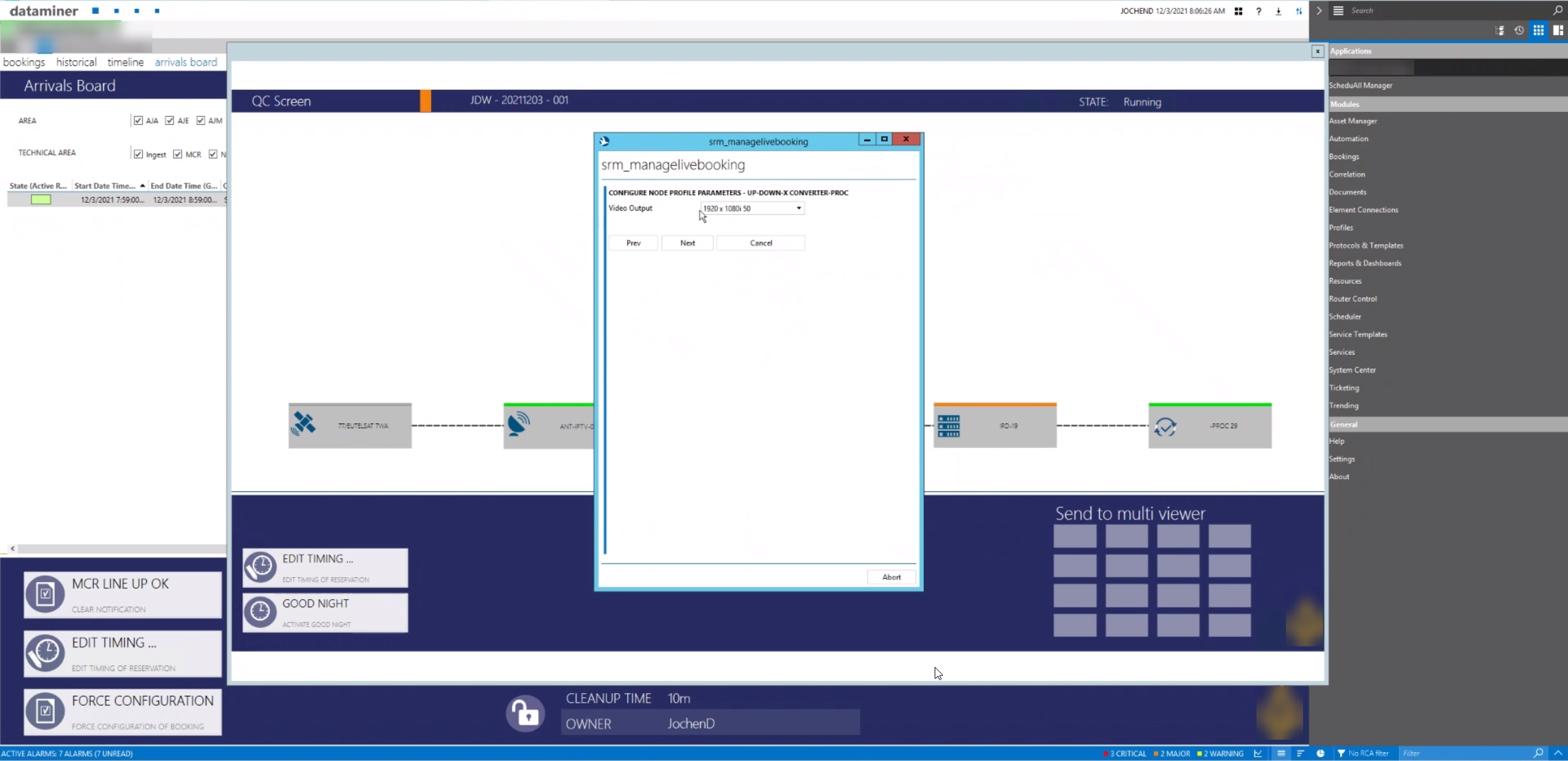 On this page, you need to specify the output format of the up/down/cross-converter.
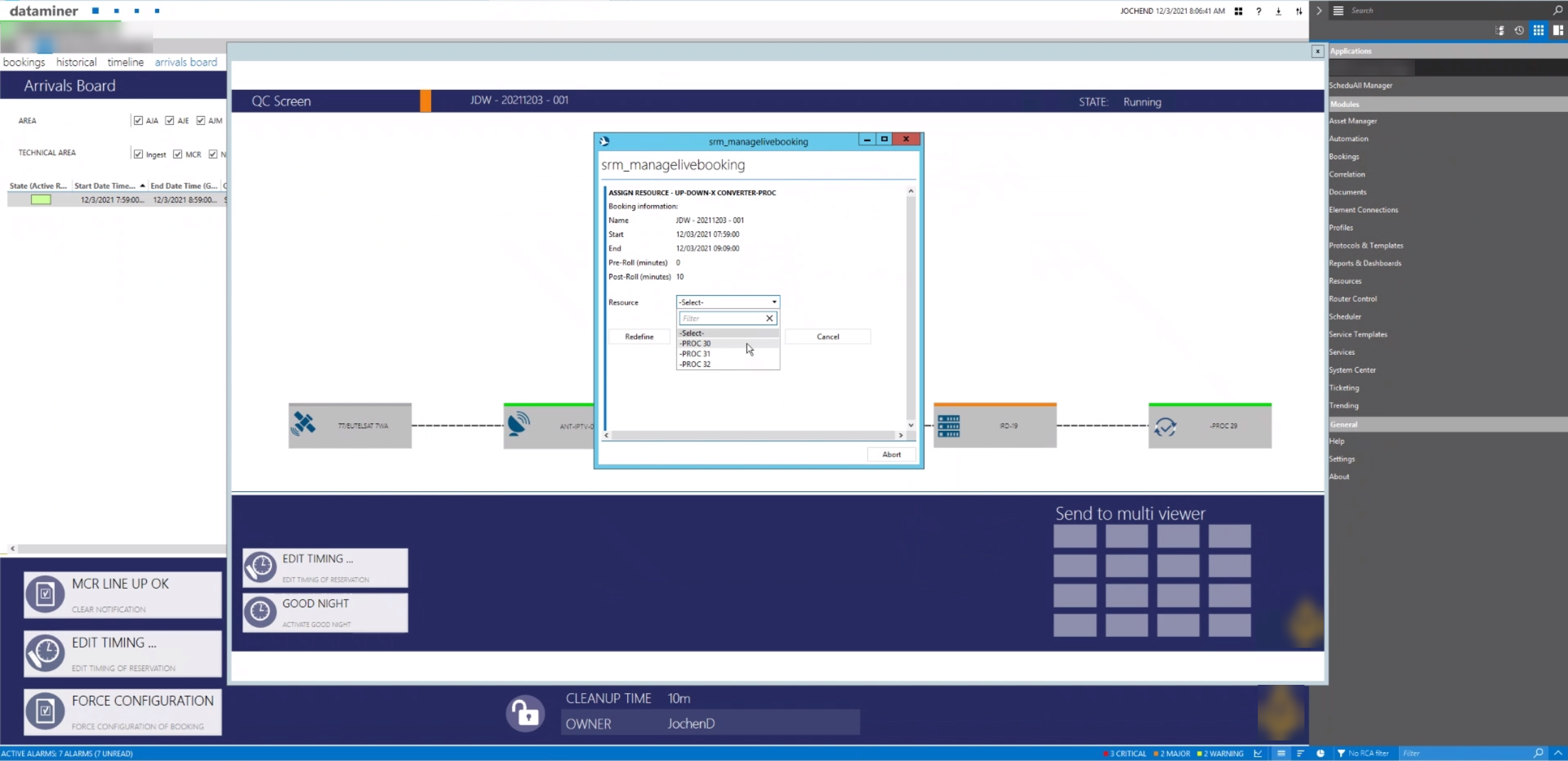 Once you have set all parameters (in this case: a converter in Doha, no DolbyE required, must upconvert to HD), DataMiner can either automatically select a converter from a pool of converters, which is available now and for the duration of the service and fulfills the requirements of the converter you need, or leave the selection to you. However, in the latter case, you can't make any mistakes as DataMiner only shows those resources in the wizard that are available and have all the capabilities you need.
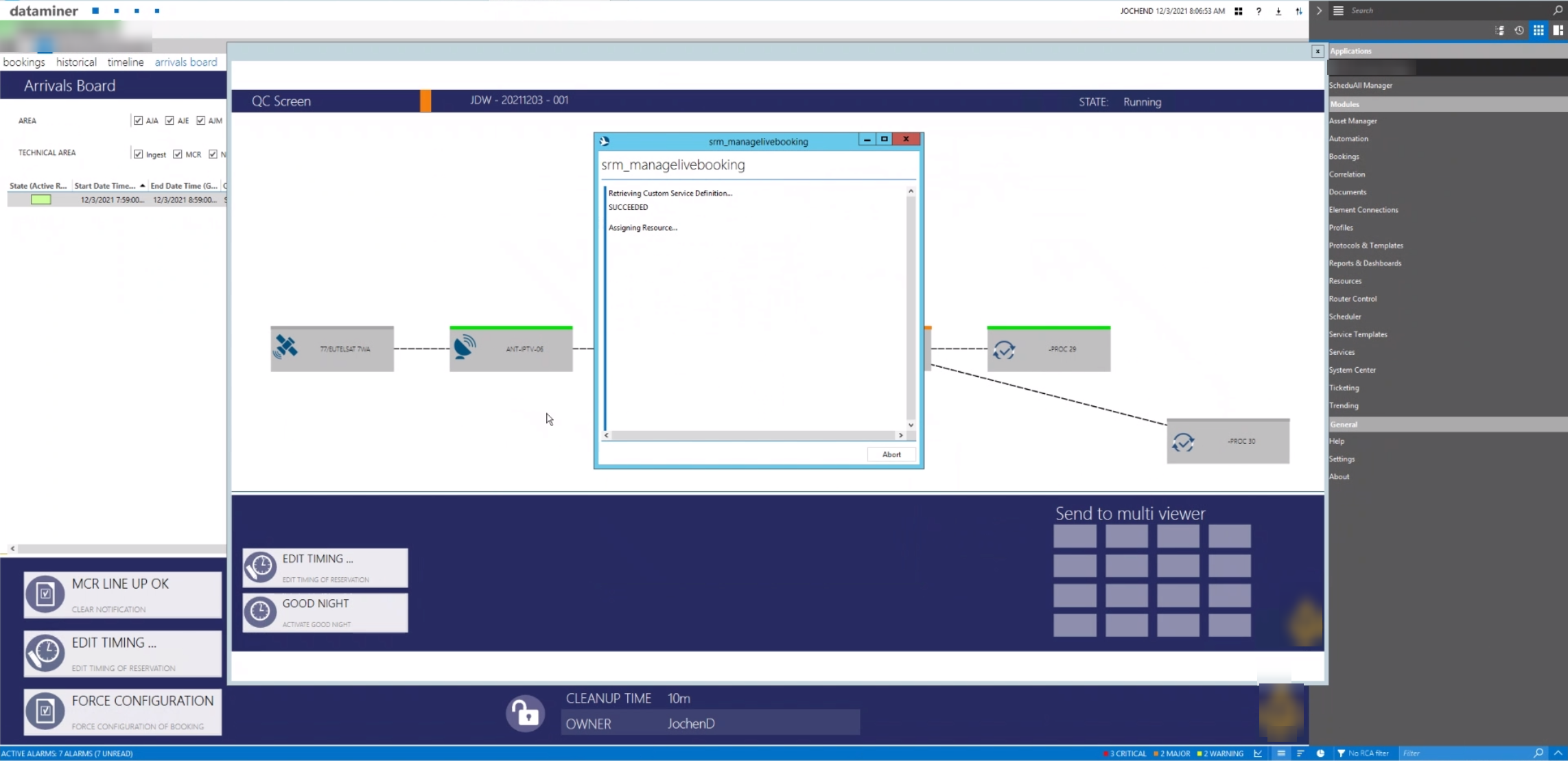 Now DataMiner assigns the selected resource, i.e. applies the correct setting and establishes the connectivity from the IRD to the selected converter by setting a crosspoint on an SDI router. As a result, you can see the additional destination showing up in the east-west service view.
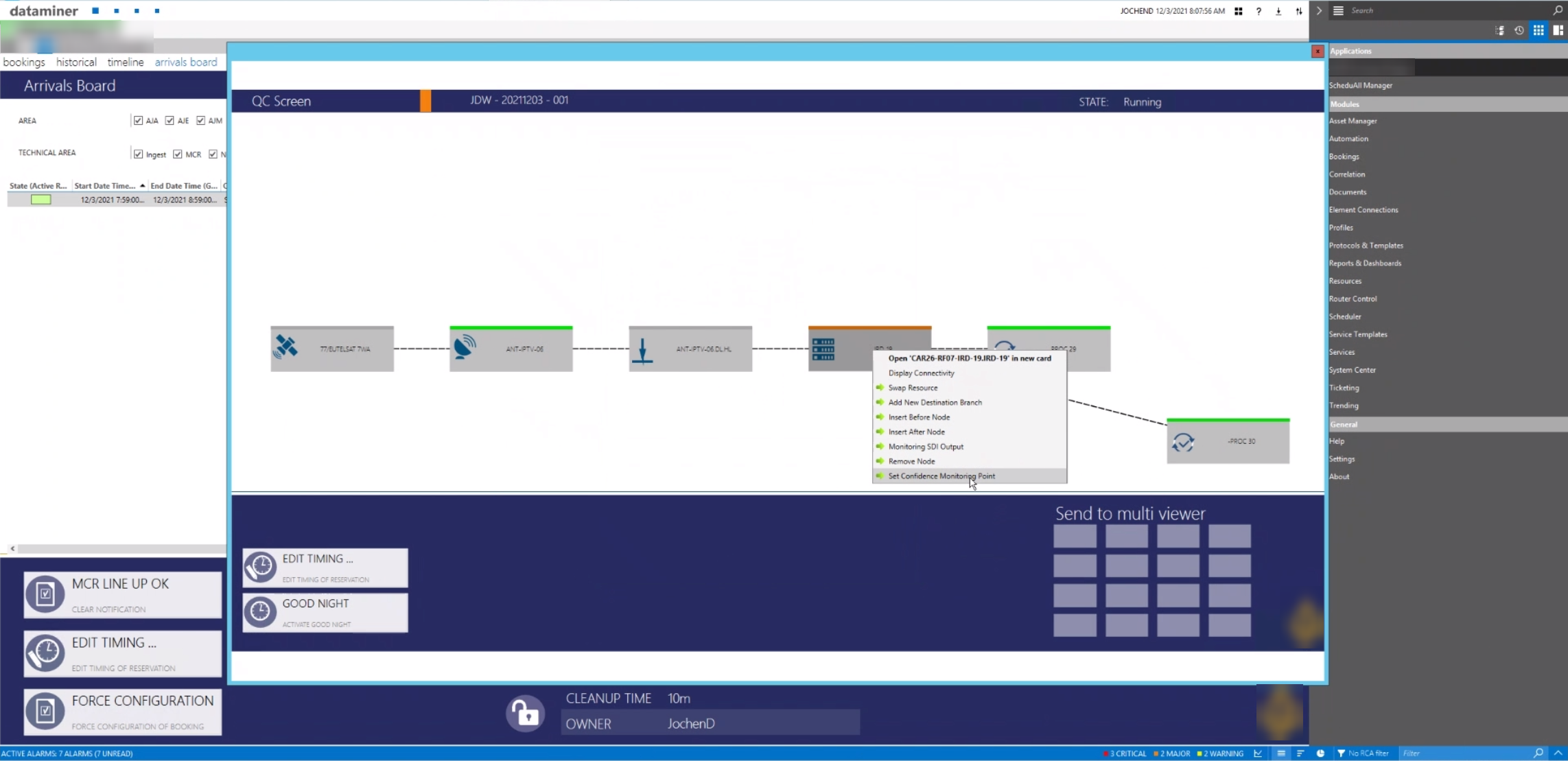 Here is another quick service manipulation example: setting a confidence monitoring point. Just select one of the nodes, right-click and add your monitoring point.
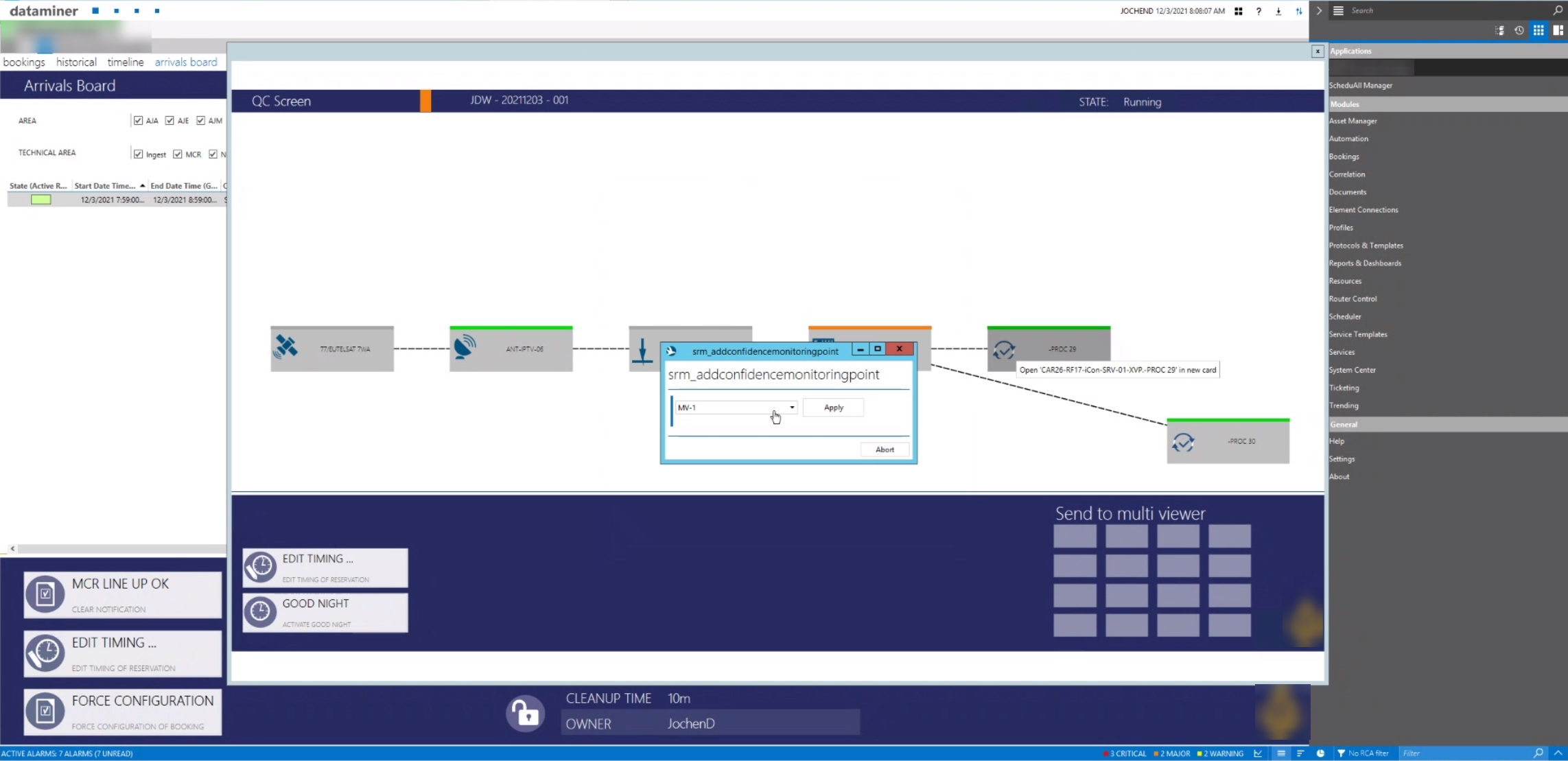 Another wizard allows you to select a multiviewer. The signal output from the selected node will immediately be routed to the multiviewer destination.
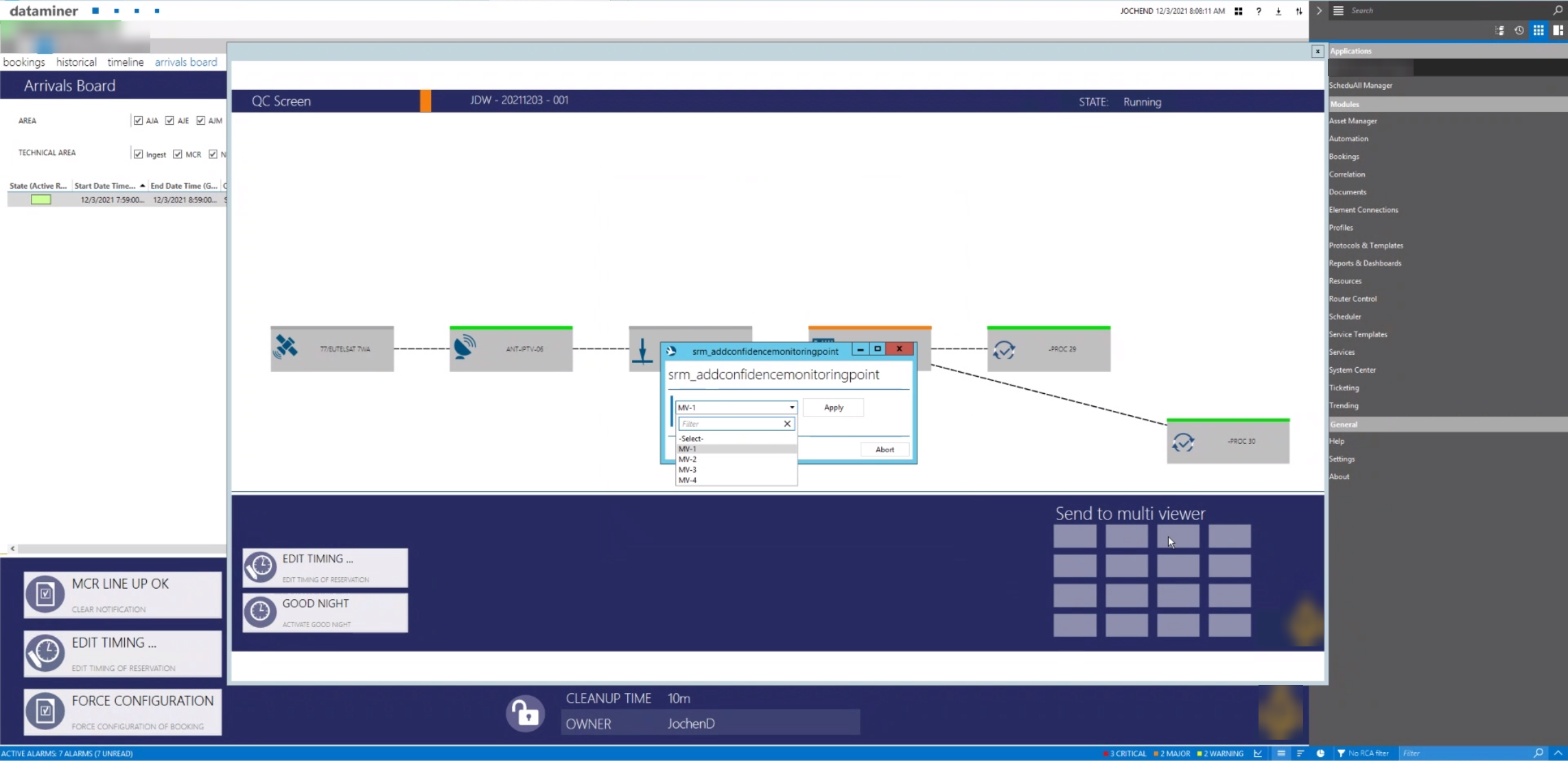 Our example shows four different multiviewers. DataMiner knows at which desk the user sits (based on the MAC address of the DataMiner client PC) and only offers those multiviewers that go with the desk of the user. We call this "desk-awareness".
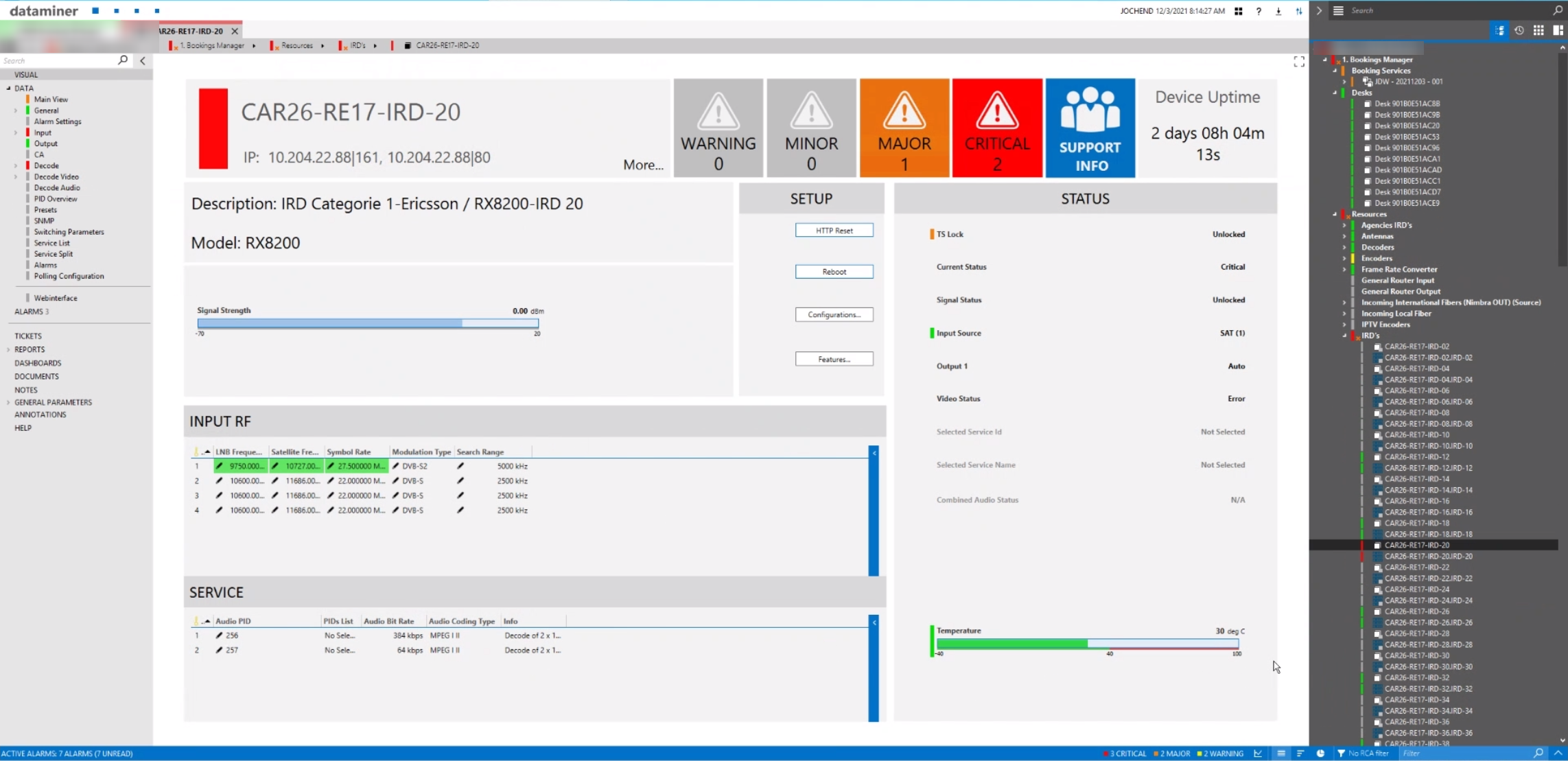 Whenever you want to manually change a parameter on any of the devices in your signal chain, simply click on the node in the service view. DataMiner will open a device view where you can change parameters on the fly. This screenshot shows the most important parameters of the selected IRD. As you can see, DataMiner also monitors your service and each device that is part of the service throughout the service life cycle. Service life cycle orchestration has many aspects, and the goal is always to automate this as much as possible. At the same time, users have the freedom to manipulate the service at any point in time to react to unforeseen scenarios that cannot be scheduled up front.